Getting started
Your first 15 minutes
From a blank account to your first what-if: what the builder asks, what the Dashboard shows, and how a scenario becomes part of your plan. · 8-minute read
Before you begin
Monte builds a working model of your household, so the one thing that genuinely helps is a recent pay stub. Rough numbers are fine everywhere: every figure you enter stays editable, and the model gets sharper as you refine it. Plan on about fifteen minutes to a dashboard that looks like your life.
Not ready to enter your own numbers? Open the planner and explore with a sample persona from inside it: a curated household where every control works, no account needed. Once you have a plan of your own, the same samples are still there: Settings → Test drive a sample profile opens one as a whole separate world (its facts, its plans, its scenarios) with everything of yours waiting untouched behind it. A badge in the header says whose life you're looking at, and Exit puts you back exactly where you were.
The walkthrough
- 1
Create your account
Sign up with an email and password or continue with Google. There is no card and no trial clock — the account leads straight into the builder.
- 2
Tell Monte about you
The first step asks only for anchors: your name, when you were born, how you file, your state, and dependents, plus your partner if you plan together. Filing status and state drive the tax math from the very first paycheck.
What it deliberately does not ask: when you retire, how long to plan, what markets return. Those start at sensible defaults (retiring at 65, planning through 95, conservative market assumptions), and every one is easier to tune later, in the planner, where the chart shows you what the number means.
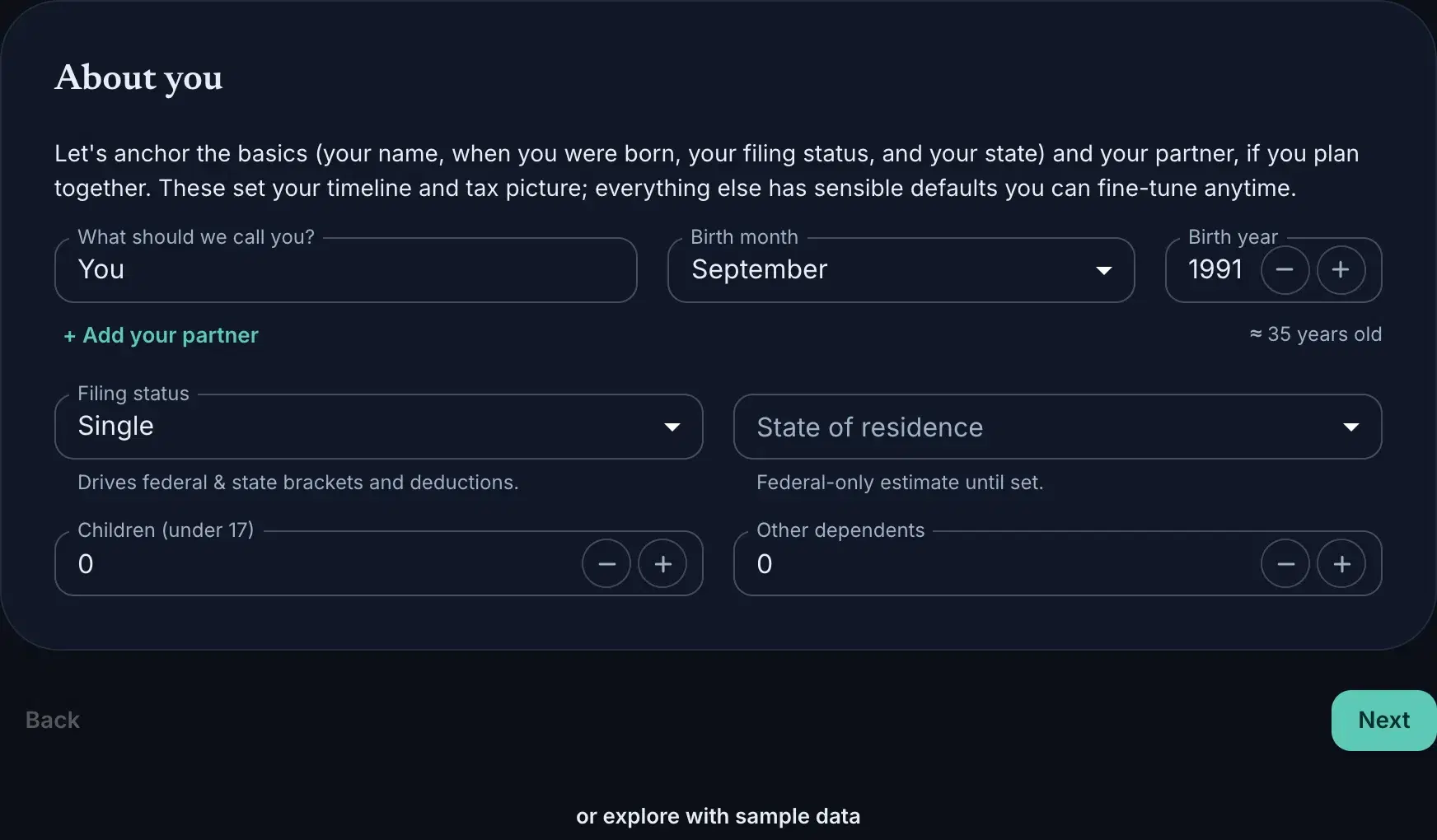
The whole first step: anchors only. If you're seeing more questions than this, you're further along than you think. - 3
Add your money
The builder walks income, expenses, accounts, assets and debts in order. Income: start with a paycheck; bonuses, RSUs and 401(k) contributions attach to the job they come from. Expenses: one “living costs” line is a fine start; a mortgage belongs with its property, not here. Accounts: the account type (401(k), Roth, brokerage, savings) is what tells the engine how withdrawals get taxed decades from now. Assets & debts: a financed car is an asset with a loan on it; if you are debt-free, skip it. A review screen at the end lets you jump back into any section.
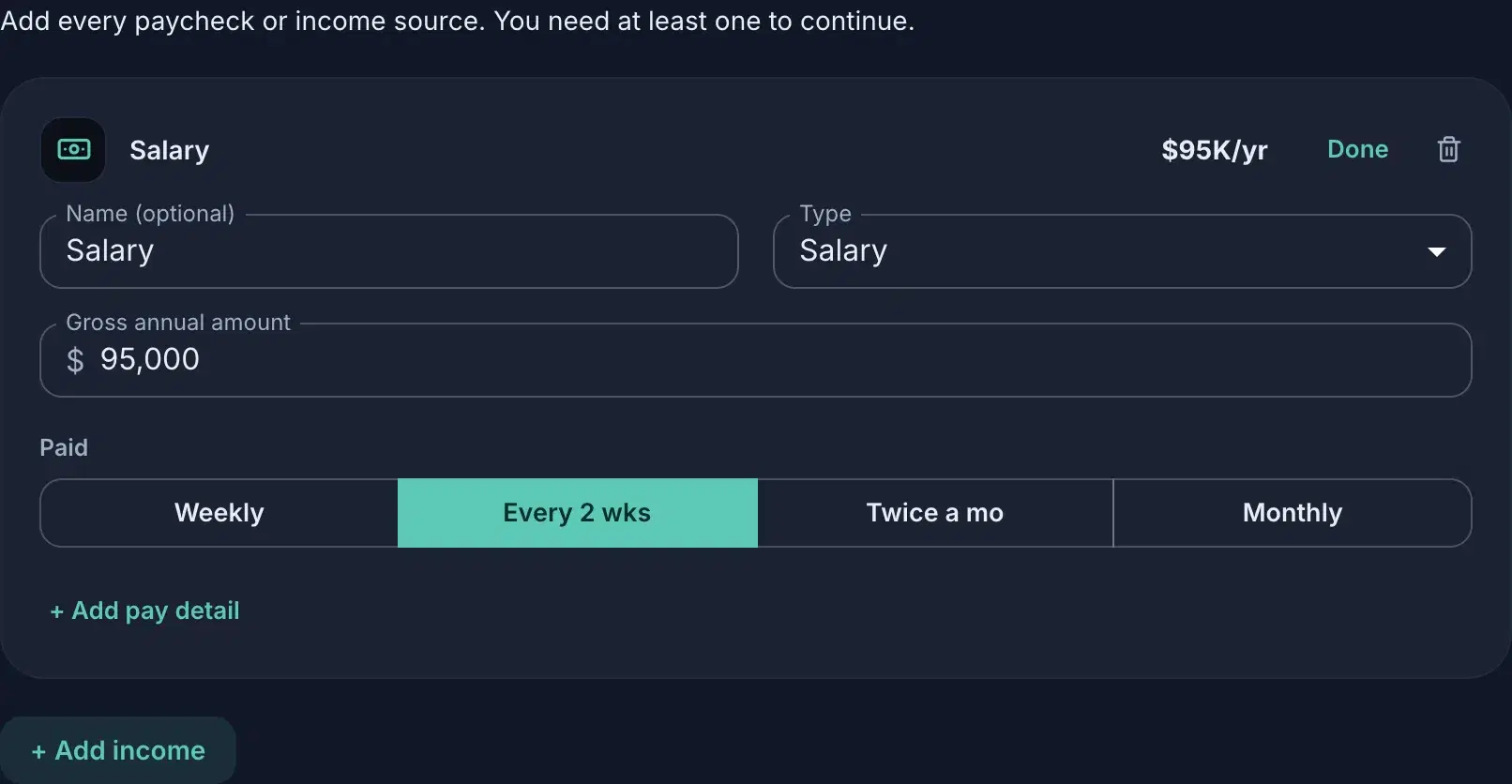
One salary added on the Income step: amount, pay cadence, and “+ Add pay detail” for the bonus or the 401(k) that rides this paycheck. - 4
Land on your Dashboard, and get your bearings
The Dashboard is today, computed: net worth, your paycheck broken down per check, cash flow, and your federal and state tax picture. Take the 60-second tour when it offers itself; you can replay it any time from Settings. Everything on this surface is part of the free plan: every lever is live, and changes save.
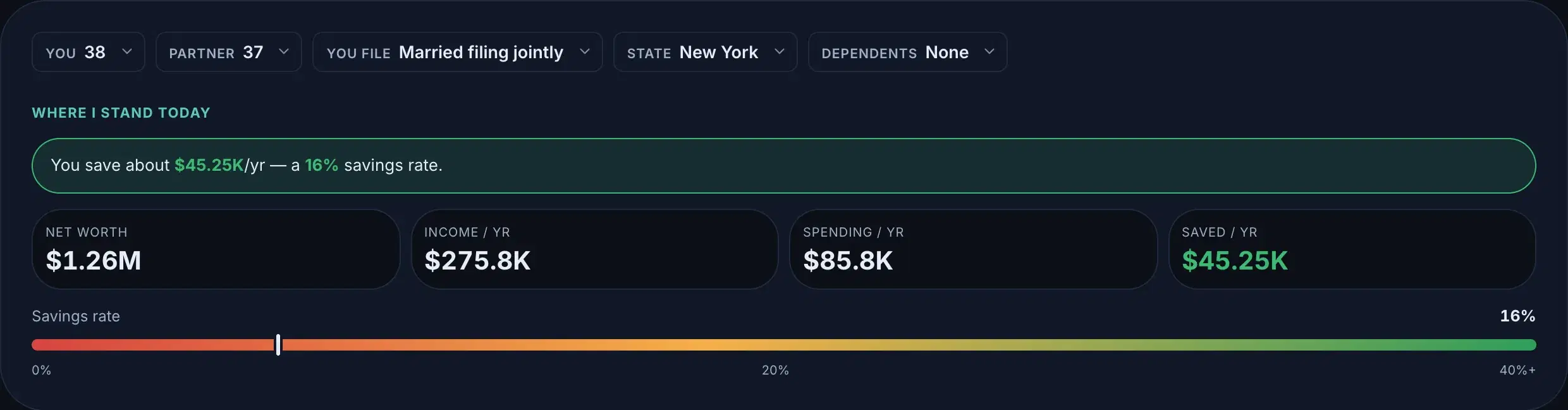
The top of a finished Dashboard: your profile as chips, the one-line summary, and today's four numbers. The Dashboard is one of several surfaces, and the chip bar along the top is how you move between them. Left of the divider are the two that always exist: the Dashboard you are standing on, and your plan. Right of it sit the what-ifs you have asked, once you start asking them. The rest of this walkthrough is a matter of moving along that bar.

The chip bar. Whichever surface you are on, the others are one click away, and a chip wearing a dot has changes you have not saved yet, which the next step gets to. - 5
Open your plan
One chip along from the Dashboard is your plan: the same numbers, carried forward as a 40-year forecast. Drag the salary lever and the line redraws as you move it: every number here is a row that opens into a slider, which Working the controls covers properly. Nothing commits itself: every change waits in the save bar until you keep it or discard it.
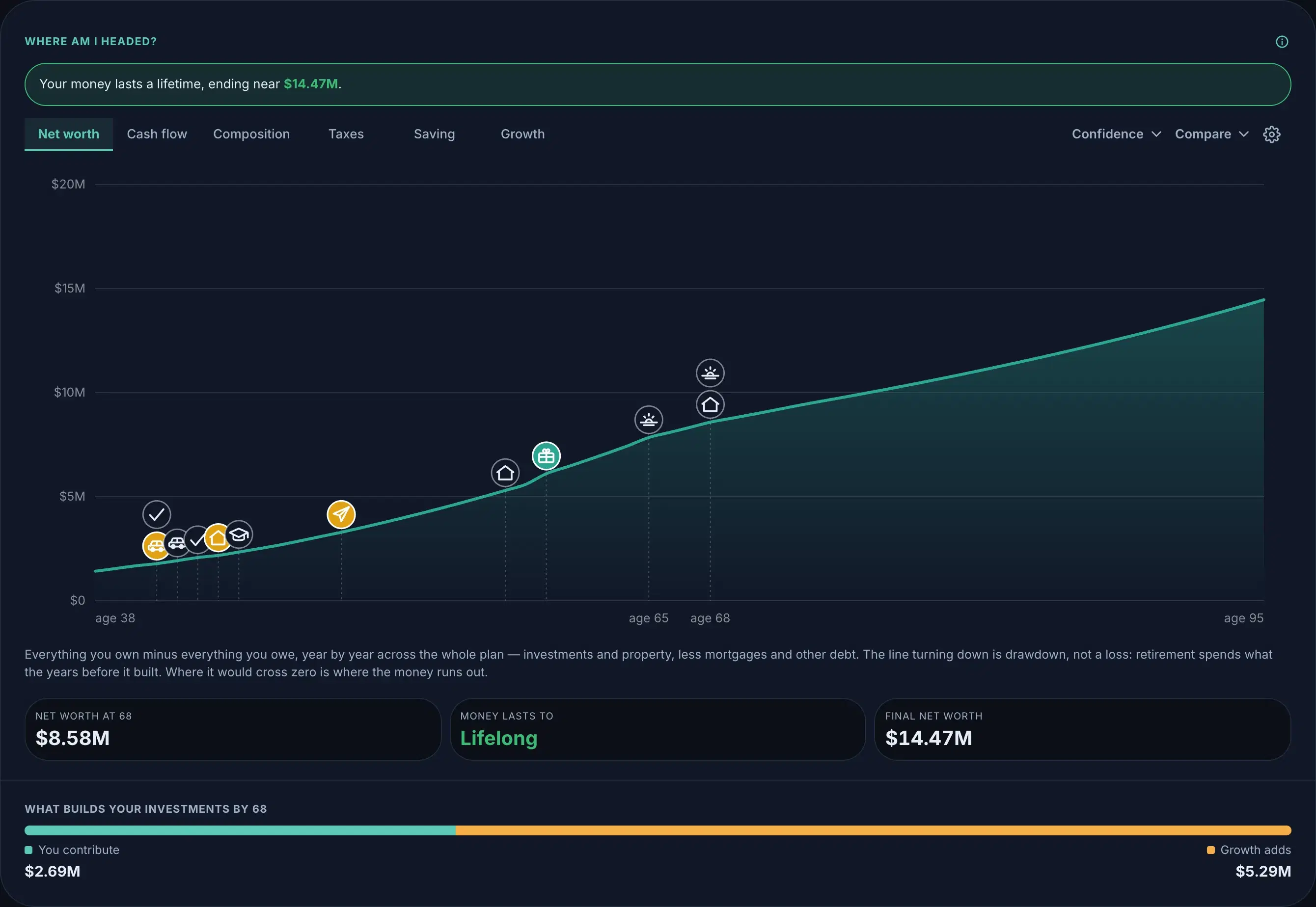
Your plan, drawn. The markers along the line are your life events, each sitting at the point it moves the money. 
The save bar's bottom banner while changes are pending: Review, Discard, or Save. The forecast is free — as is every guided lens, Confidence, and keeping plans side by side. Plus is for planning together with your partner, coming soon.
- 6
Ask your first what-if
On the scenario rail, press + New and pick a lens. Retire early is a good first one, and the lens catalog has the rest. Drag the retirement age and watch the fork: your plan’s line and the scenario’s, side by side. A scenario is a sandbox. Nothing you do in it touches your plan.
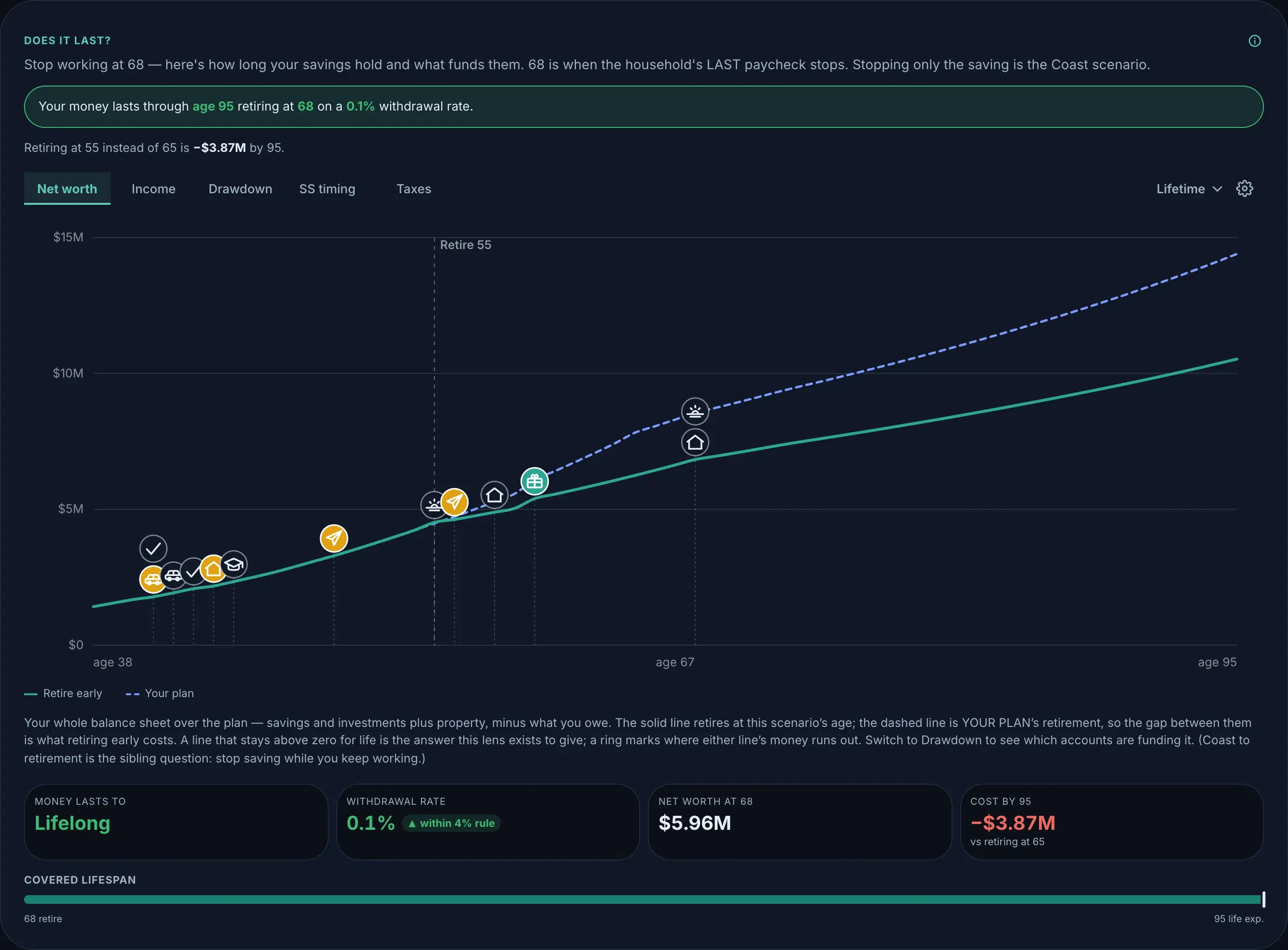
The retirement lens: drag the age, watch the fork, read the verdict in your own numbers. - 7
Make it real
When a what-if earns its place, press Add to plan in the scenario's chip menu (⋮). The decision lands in your plan as ordinary data (a new retirement age in Timing, new dated rows where money moves), and so does everything else you changed while you were in there.
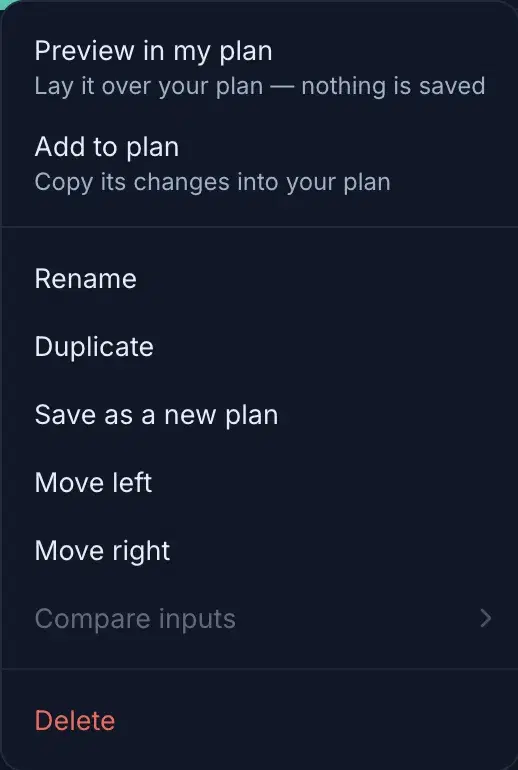
Every scenario verb lives in one menu. Add to plan is the only one that writes to your plan. Review in the dialog names every value first, and lets you untick the extras you would rather leave behind; the lens's own answer always comes, because half a decision is a different decision. The copy is one-off: the plan won't change again unless you press Add again, and re-adding overwrites the same rows in place; dragging on afterward stays the sandbox it always was, and a save never touches the plan. Plan changes do flow the other way, down into every scenario automatically. That one-way channel (nothing reaches the plan except the Add you press) is the whole relationship between scenarios and plans; Facts, plans & scenarios covers why.
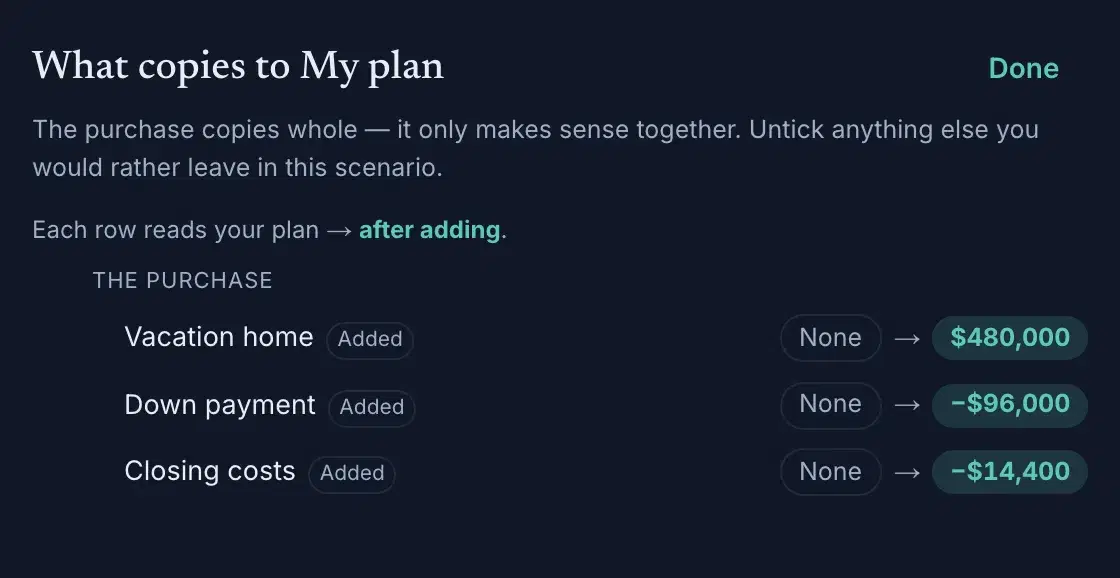
Review before you commit. The purchase has no checkboxes (it copies whole), while everything else you touched in the scenario is yours to leave behind.
Where next
Five guides go deeper, and they are worth reading in roughly this order. Facts, plans & scenarios is the one to read first: three layers, and what each is allowed to edit. Working the controls is the manual for the sliders you have been dragging: typing instead, retuning a range, flipping units, and reading the marks a change leaves behind. Down the plan rail walks the controls beside your plan top to bottom, including the growth rates most people never find. Saving & comparing covers how changes wait, how to unwind them at any size, and the three ways to put two futures side by side. And the lens catalog lists every guided what-if that ships today.
If you would rather watch someone else do it first, a homeowner walks through Monte start to finish: one household, one plan, and a few questions asked of it. Then try Confidence, which surrounds your plan’s single traceable line with thousands of simulated market futures.